

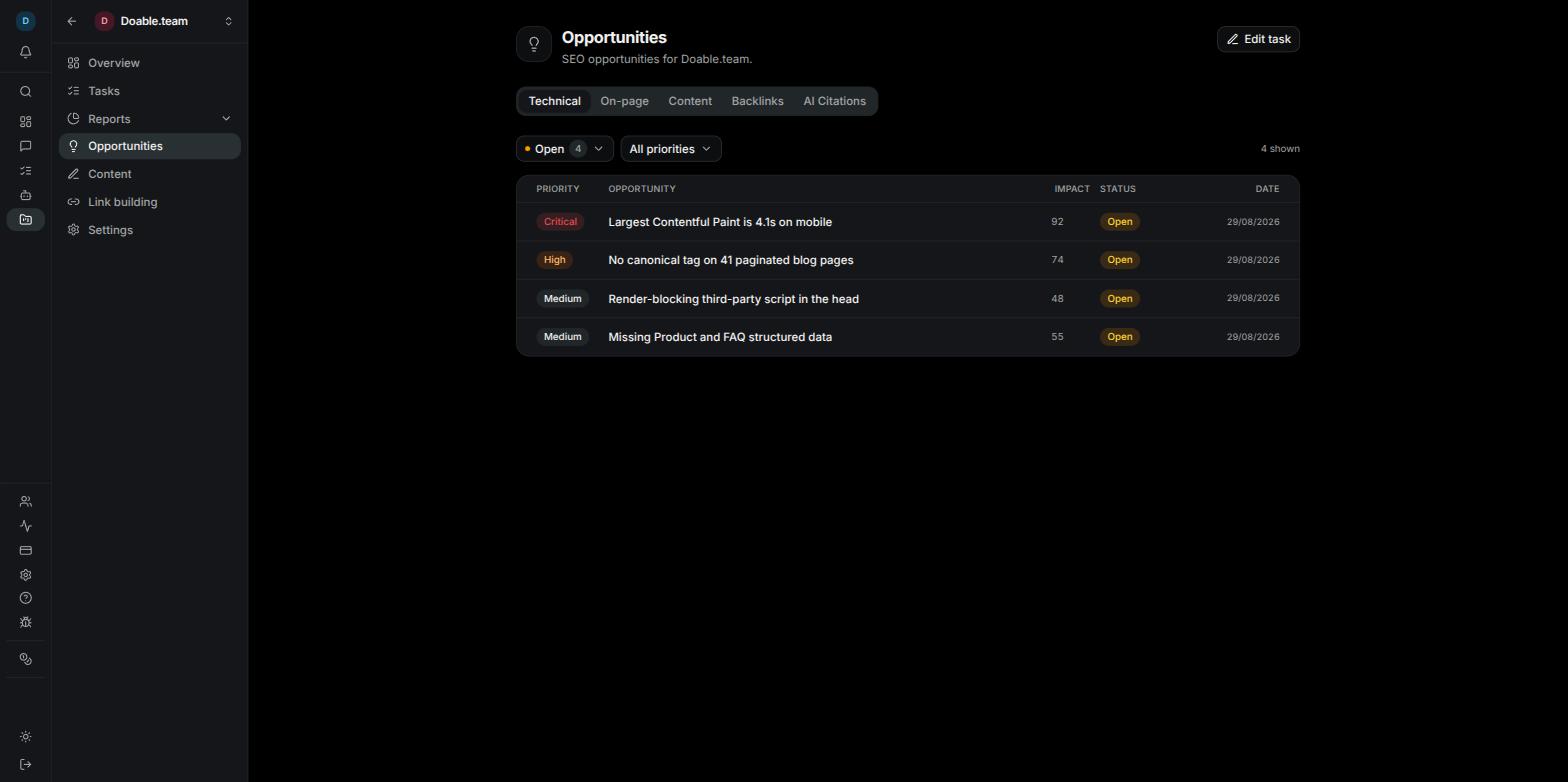
The Opportunities page: five tabs, a status and priority filter bar, and one row per finding.
If Opportunities is missing from a project’s sidebar, an admin can switch it back on under Project Settings → Features → Opportunities. It is on by default for every new project.
Where each tab gets its rows
The five tabs are filled in three different ways. Knowing which is which tells you what to set up and when to expect new rows.Technical and On-page
These two tabs are filled by agents. An audit agent works a recurring Task, and every finding it records shows up as a row. Hiring the agent is not enough on its own — findings only arrive once the Task has run.Set up the audit
1
Hire the audit agent if you need to
If the tab shows No agent can find technical opportunities yet (or the on-page equivalent), click Hire Technical SEO Audit Agent or Hire On-Page SEO Audit Agent and complete the hire. Depending on your permissions the agent is added straight away, or the request lands in the Inbox as an Agent hire Approval for an admin to accept. See Agents for how hiring works.
2
Create the recurring audit Task
Click Create a Task in the page header. The New task dialog opens pre-filled: the title (Run a technical SEO audit or Run an on-page SEO audit), a brief describing what to audit, the matching category, the capable agent already assigned, and Recurring switched on with a weekly schedule — Mondays at 09:00 UTC by default.
3
Adjust and confirm
Change anything you like — the day, the brief, the agent — then click Create task.
4
Wait for the first run
Findings land in the tab after the Task’s next run. From then on the header button reads Edit task and opens that recurring Task, so you can change its cadence or brief whenever you want.
Read the list
Rows are sorted by priority — Critical, then High, Medium and Low — with the newest first inside each priority. The table shows Priority, Opportunity, Impact, Status and Date; on a phone it collapses to priority, title and status. The filter bar above the table has three parts:- Status — a single choice: All statuses, Open, In progress, Done or Dismissed, each with a count. The default is Open, so Done and Dismissed rows stay out of the way until you ask for them.
- Priority — tick any combination of Critical, High, Medium and Low. Clear resets it.
- N shown on the right tells you how many rows match. If nothing matches, click Clear filters.
Triage a finding
Click a row to open its detail dialog. It shows the status, priority and type badges, the title and description, tiles for Effort (Low, Medium or High), Impact (a 0–100 score), Created and Updated, and the page the finding relates to. From the dialog you can:- Change Status to Open, In progress, Done or Dismissed. The change saves immediately.
- Change Priority to Critical, High, Medium or Low. This saves immediately too.
- Click Create task to hand the finding to an agent. See Turn an opportunity into a Task.
- Click Dismiss to park it. A Done or Dismissed row shows Reopen instead.
- Click the trash icon to delete the finding permanently.
Content
The Content tab shows search demand you are not capturing yet. Once a week Visibility scans your Google Search Console data, scores every qualifying query, and files the results into three buckets. Topics your competitors get traffic on, but you have no page for, are merged into the same list.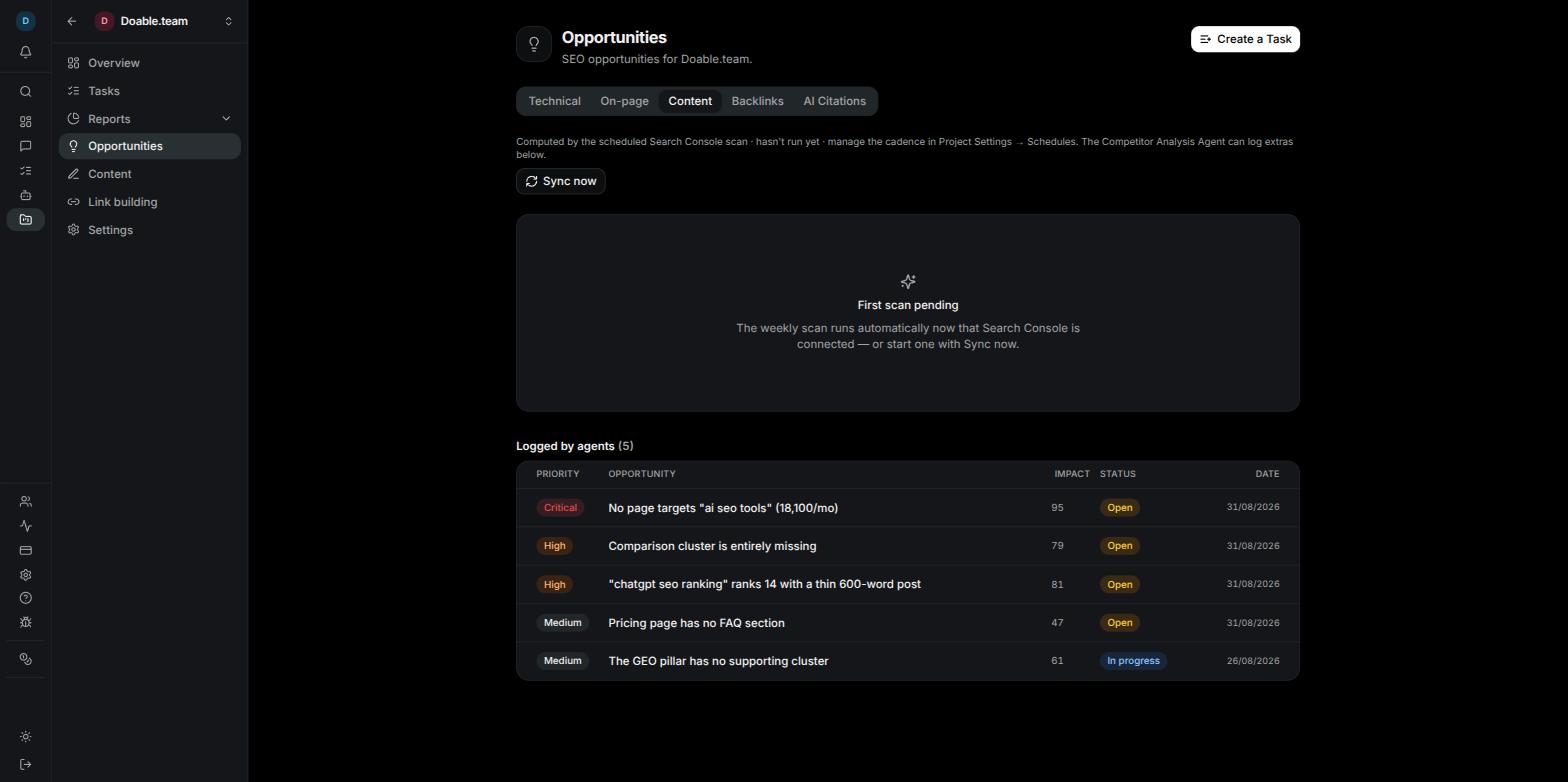
The Content tab: bucket sub-tabs with counts, topic groups, and a tier pill and metrics line on every query.
Connect Search Console first
If the tab shows Connect Search Console, click Connect in Project Settings. It takes you to Project Settings → Integrations, where you connect the Google account that owns the site’s Search Console property. See Integrations. Branded queries — searches for your own name — are excluded automatically. Visibility works the brand terms out from your domain; there is no list for you to maintain.The three buckets
The bucket sub-tabs read New content (N), Optimize (N) and Expand (N). Inside each, queries that mean roughly the same thing are clustered under one topic label in an accordion.What a query row tells you
Expand a topic group to see its queries. Each row shows:- A tier pill — Quick win, Strong, Consider or Low — followed by the win score, for example Quick win · 82. The win score runs from 0 to 100 and combines how much demand the query has, where you currently rank, how far your click-through rate sits below what that position normally earns, and the intent behind the search. Higher means more likely to pay off quickly.
- On Optimize rows, +N clicks in place of a tier: the estimated extra clicks per month if the page earned the click-through rate its position deserves.
- The suggested content type and a short why-line explaining the pick.
- A metrics line such as 1.2K impr · pos 8.4 · CTR 1.2% vs 3.0% · current page, with a link to the page that ranks today.
- A query needs at least 50 impressions in the last 28 days to qualify.
- Each bucket shows up to 50 rows.
- A query that stops appearing in scans for 7 days is tagged stale until it shows up again.
Refresh sooner than weekly
The status line at the top of the tab tells you when the scan last ran. To refresh before the next weekly scan, click Sync now. You get up to 3 manual syncs per project per day; the button reads Syncing… while a scan is running and Daily limit reached once you have used them up. The weekly scan itself is never affected by your manual syncs. To change how often the scan runs, open Project Settings → Schedules and edit the Content Opportunities card. See Schedules behind the automatic tabs.Logged by agents
Below the Search Console picks you may see a Logged by agents (N) table. These are content opportunities an agent recorded while working — the status line names the Competitor Analysis Agent as one source. The table works exactly like the Technical tab: click a row for the detail dialog, set status and priority, dismiss or create a Task.Backlinks
A backlink gap is a website that links to one or more of your competitors but not to you — usually the most realistic link you can go after, because the site already links to businesses like yours. The check runs weekly and needs no agent.Before it can run
If the tab shows Backlink gaps need a little setup first, it lists what is missing, each with a Set it up button:- A project domain, set in Project Settings → General.
- At least one competitor domain, added under Project Settings → General → Competitor domains. See Choosing competitors.
- A data provider — either the managed provider or your own DataForSEO keys under Company settings → Data providers. See Credits and BYOK.
Read the rows
Rows are listed strongest first. Each one shows:- A score pill — the impact score from 0 to 100, comparable across Backlinks, AI Citations and competitor content gaps.
- The referring domain and a why-line such as Links to 3 of your 5 competitors, but not to you · domain rank 51.
- Domain rank, Spam and Visit evidence so you can judge the site before you reach out.
- First seen, plus Create Task and a dismiss (X) button.
AI Citations
An AI citation gap is a source website that AI assistants cite when they answer questions about your competitors, but never when your brand is involved. Getting listed there is how you show up in those answers. Each row is one source domain, so each row is one outreach target. Like Backlinks, the check runs weekly and needs no agent.Before it can run
If the tab shows AI Citation gaps need a little setup first, it lists what is missing with Set it up buttons:- A project domain.
- At least one competitor domain.
- At least one completed AI Visibility check for the project. See AI Visibility.
Read the rows
Each row shows a score pill, the source domain, a why-line such as Cites 2 of your 4 competitors across 7 pages, and never mentions you, N cited pages, an Example link to one of those pages, Create Task and a dismiss (X) button. Lower-scoring rows sit behind Show N lower-scoring, just like Backlinks. There is no Create a Task header button on this tab; work row by row.Choosing competitors
Backlinks, AI Citations and the competitor rows on the Content tab all compare your project against the domains in Project Settings → General → Competitor domains. Type a domain into the pill input and press Enter to add it. You do not have to guess. Below the input, Suggested competitors — seen across your AI-visibility answers offers one-tap pills for the domains that keep turning up when AI assistants answer your tracked prompts, each with a count of how often it appeared. Click Show N more for the full set. Directories and listing sites appear in a separate Directories group, described as better citation targets than competitors. Leave them out of your competitor list: adding a directory as a competitor removes it from your AI Citations tab, which is usually the opposite of what you want.On the project Overview, the Site authority card shows the same hint — N suggested from your AI-visibility answers — next to Add competitors until you have added at least one.
Turn an opportunity into a Task
Every tab lets you hand a row to an agent, and it always goes through the New task dialog — nothing is created until you confirm.1
Start from the row
On Content, Backlinks and AI Citations, click Create task (or Create Task) on the row. On Technical and On-page, use Create task in the detail dialog or in the right-click menu. On the Content tab you can also click Create task on a topic group header to raise one Task that covers every query in the cluster.
2
Check the pre-filled Task
The New task dialog opens with a title, a brief and a category already written for you — see the table below. It also picks the agent whose job that row is, when you have hired one: Backlinks and AI Citations rows go to the Backlink Building Agent, content rows to the content writer. The Task is a one-off, so Recurring stays off.
3
Edit and confirm
Change the title, brief, agent or due date as you like, then click Create task.
After you confirm, an agent-logged row flips to In progress and a Search Console row shows a task created chip, so you can see at a glance what is already being worked. A Backlinks or AI Citations row leaves the list entirely once it becomes a Task — it is linked to that Task from then on, so the weekly check will not offer you the same prospect again. Follow progress in Tasks.
Dismiss what you will not act on
Not every row deserves a Task. Dismissing keeps the page honest without deleting anything an agent found.- Technical and On-page — click Dismiss in the dialog or right-click menu. The row leaves the default Open view. If you change your mind, set the Status filter to Dismissed and click Reopen on the row.
- Content — click the X on a query. It stays hidden across all future scans, and a N dismissed rows hidden. line at the bottom of the tab keeps count.
- Backlinks and AI Citations — click the X on a row and it disappears from the tab.
Schedules behind the automatic tabs
The automatic sources each have a card under Project Settings → Schedules:
Each card shows its cadence (Not scheduled or a plain-English schedule), a checklist of its requirements, and a Run now button. If a run fails, the card offers Retry. The three competitor checks run weekly at most — the schedule editor tells you This source runs weekly at most and hides shorter intervals. Competitor Content Gaps needs the same three things as Backlinks: a project domain, a competitor and a data provider.
For the schedule editor itself, see Projects.
The Monday email
Every Monday, the admins of your Company receive an email summarising the opportunities still open across its projects. It covers open and in-progress findings logged by agents — Technical, On-page and agent-logged Content rows — grouped by project, with the top five per project. If nothing is open, no email is sent. Search Console picks, Backlinks and AI Citations are not included, so check those tabs in the app.Related pages
Tasks
What happens to a Task after you create it from an opportunity.
Projects
Project Settings: Features, Schedules, Integrations and competitor domains.
AI Visibility
The checks that power the AI Citations tab and competitor suggestions.
Dashboards
Build a shareable report from the project’s ranking, AI visibility and traffic data.