

Opening the Account dialog
Everything personal lives in one dialog, not on a page.1
Find your profile row
Look at the very bottom of the sidebar, under Help & FAQ and Report a bug. The row shows your avatar, your name and your email.
2
Open it
Click the row. You can also press Ctrl/⌘ K and choose Account settings.
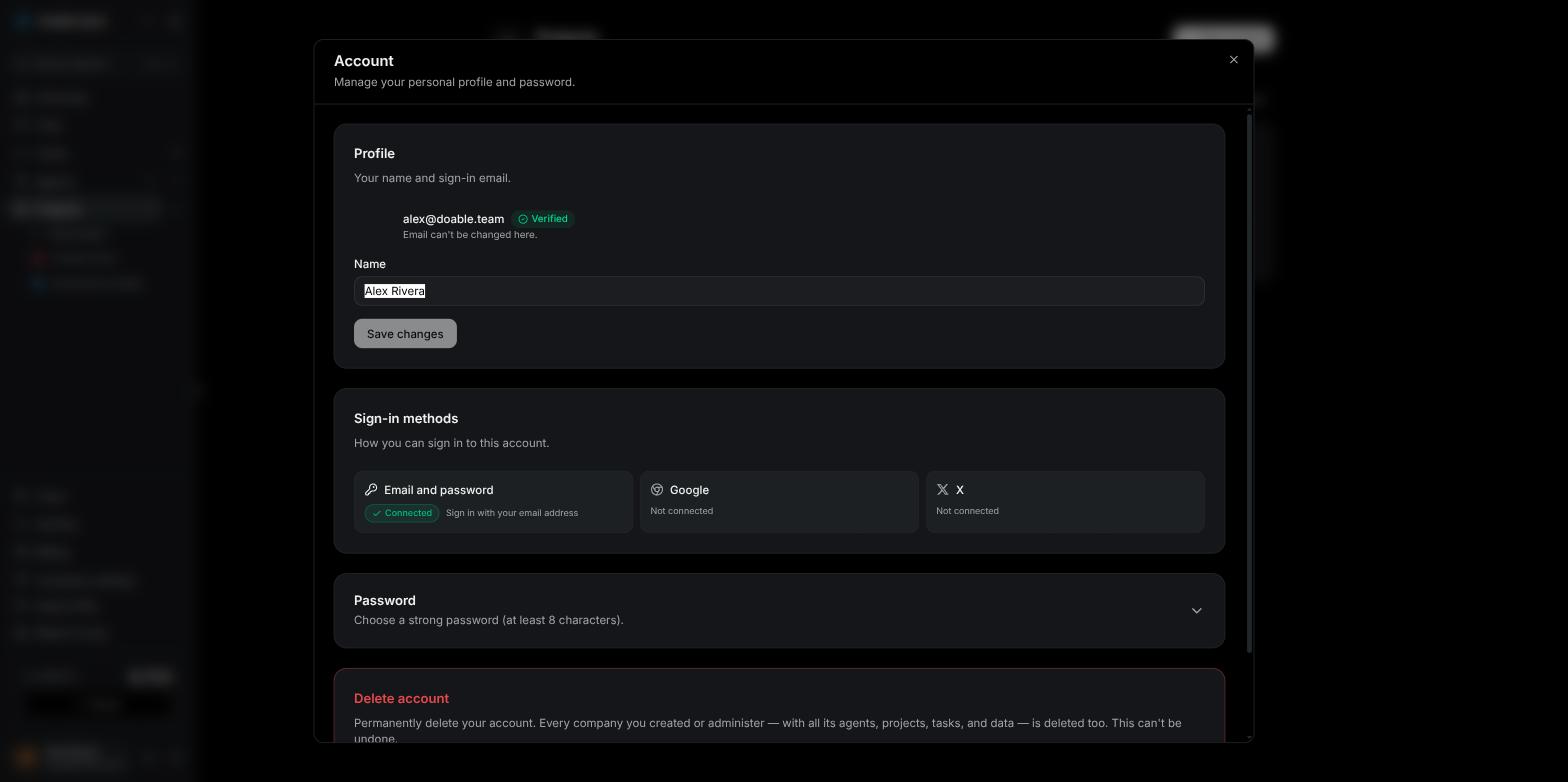
The Account dialog: profile, sign-in methods, the collapsed password card and the delete account card.
Your profile
The Profile card shows your avatar, your email address with a Verified or Unverified badge, and your Name. To change your name, edit the Name field and click Save changes. The button stays disabled until the name is different, an empty name shows “Name can’t be empty”, and a successful save shows the toast Profile updated. Your name is what teammates and agents see on tasks, comments and the org chart. There is no avatar upload. Visibility uses the picture from a connected sign-in provider, or your initials.Your email address can’t be changed in the app — the card says “Email can’t be changed here.” Contact support if you need to move your account to a different address.
Sign-in methods
The Sign-in methods card lists the three ways an account can get in, each marked Connected or Not connected. Google and X also show the date they were linked.
This card is informational — there are no Connect or Disconnect buttons on it. Methods are added by using them:
- To add Google or X, sign out, then sign in with Continue with Google or Continue with X using the same confirmed email address as your account. The provider is linked automatically and the tile switches to Connected.
- To add email and password, use Set a password in the same dialog (below).
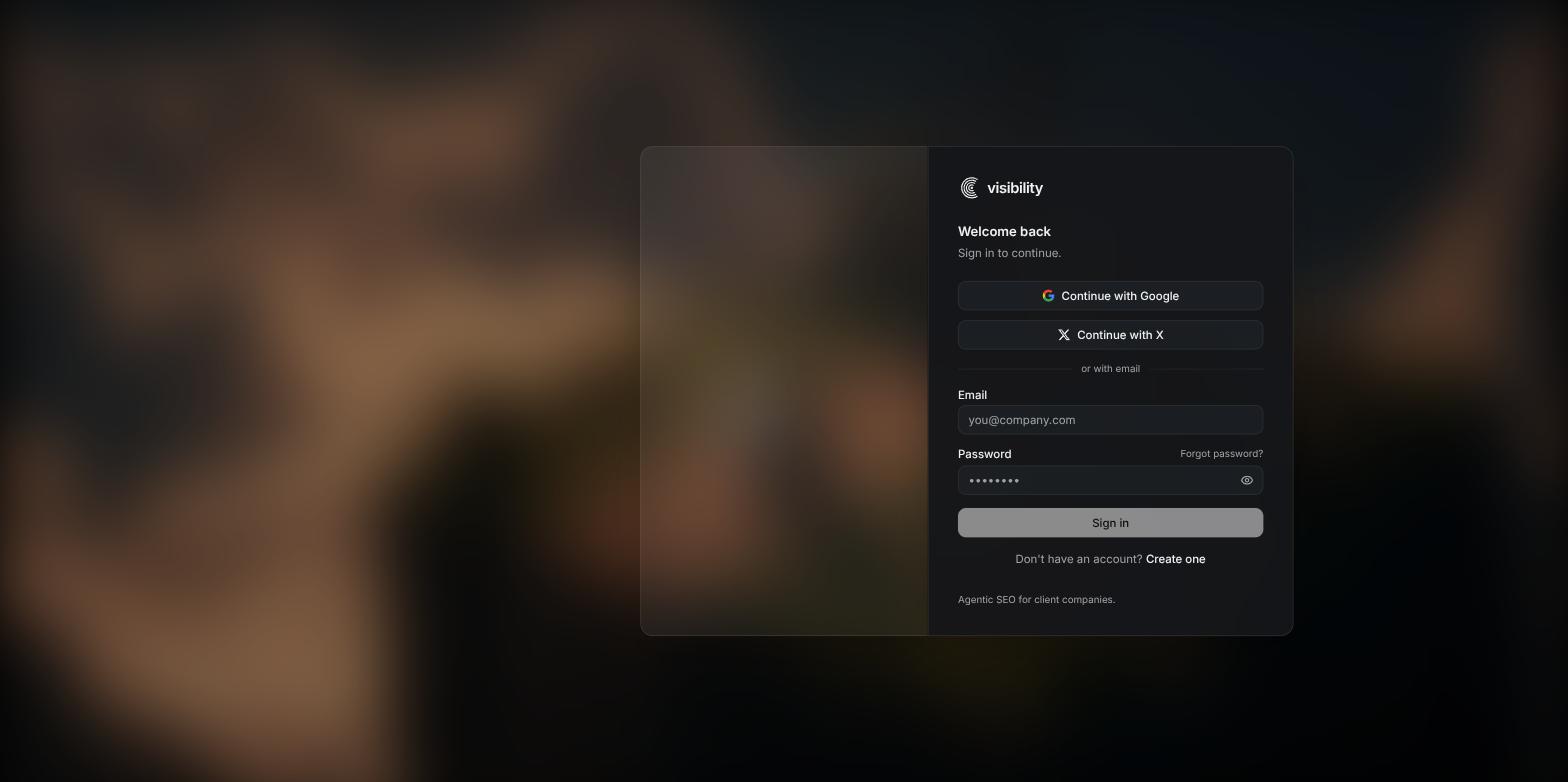
The sign-in page, where signing in with Google or X links that method to your existing account.
Linking only happens when the provider confirms your email address. If it does not, sign-in fails with “did not confirm an email for this account. Sign in with your email and password instead.” Sign in with your password and try again from an account whose email the provider has verified.
Changing your password
1
Expand the Password card
In the Account dialog, click the Password header. If your account has no password yet, the card reads Set a password instead.
2
Fill in the fields
Enter Current password, New password and Confirm new password. The new password must be at least 8 characters. An account that has never had a password is not asked for a current one.
3
Save
Click Update password (or Set password). The toast Password changed appears, the fields clear and the card collapses.
Theme
The sun/moon icon sits next to your profile row at the bottom of the sidebar. Click it to switch between Dark theme (the default) and Light theme. Your choice is remembered in that browser, so it can differ between your laptop and your phone. The sign-in pages are always dark. The round handle on the sidebar’s right edge collapses it to an icon rail; see Navigating the app.Signing out
Click the sign-out icon in the profile row at the bottom of the sidebar. You return to the sign-in page.Deleting your account
Deleting is self-service and immediate. It is also the most destructive thing you can do in Visibility, because it takes companies with it. Before you start, decide what should survive:- Export anything you want to keep from Company settings → Data → Export company data. See Company settings.
- To hand a company on instead of deleting it, give another person the Admin role and remove yourself from that company first. See Team management.
- Cancel or check any subscription you are paying for in Billing.
1
Open the Delete account card
Scroll to the red Delete account card at the bottom of the Account dialog and click Delete account.
2
Confirm by typing your email
In Delete your account?, read the warning, then type your email address in the Type … to confirm field. Capitalisation does not matter, but the address must match. Delete permanently stays disabled until it does.
3
Delete
Click Delete permanently, or Cancel to back out. You see the toast Account deleted and land on the sign-in page.