

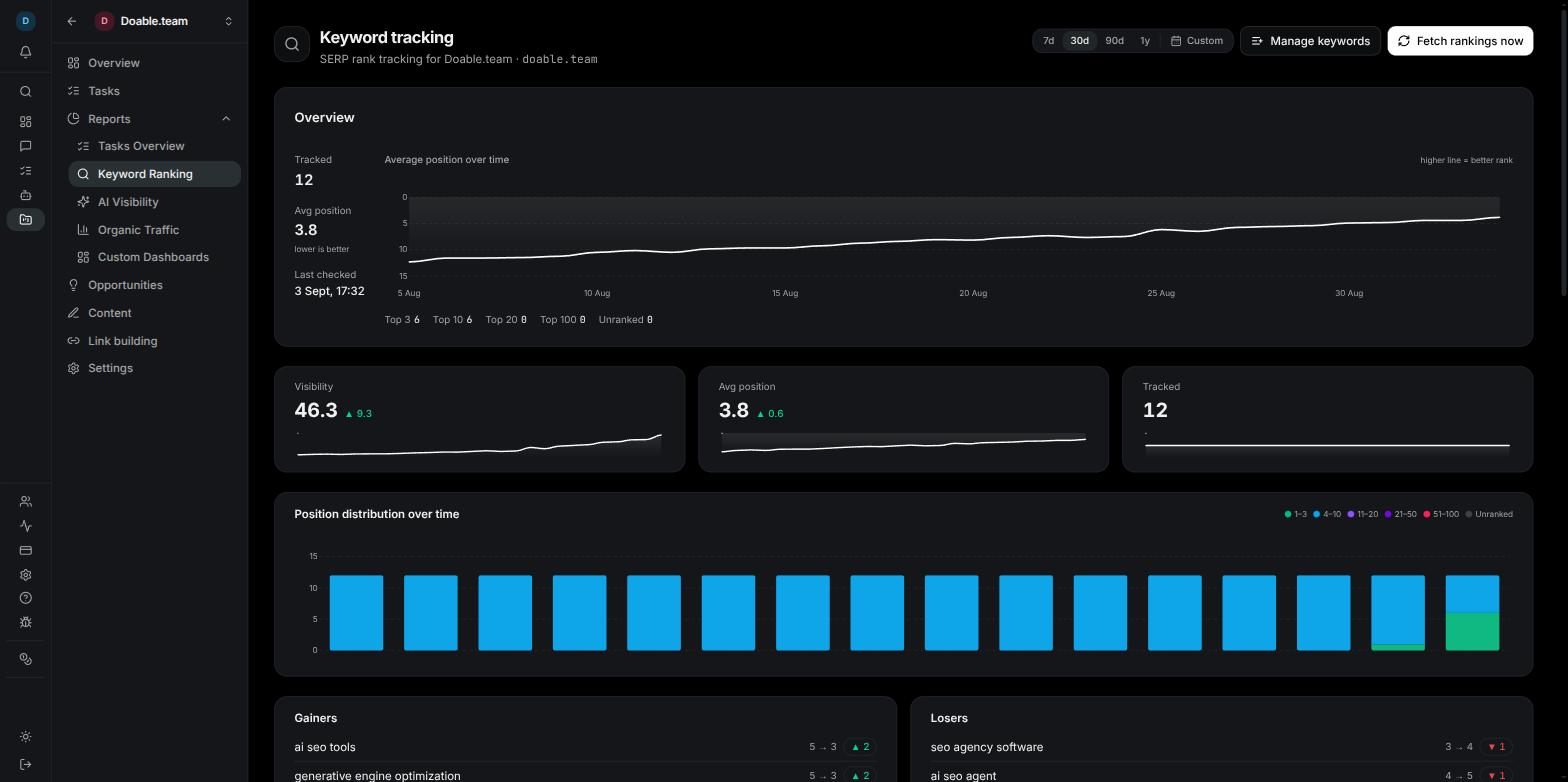
The Keyword Ranking report: overview strip, average-position chart and rank-band counts above the keyword table.
If Keyword Ranking is missing from a project’s sidebar, a company admin has switched the Keywords page off under the project’s Settings → Features. Turning it back on restores the page immediately. See Projects.
Before you start
- The project needs a domain. Set it under the project’s Settings → General; until then, fetching rankings stops with Set a project domain first.
- Anyone in the company who can open the project can add keywords and fetch rankings. Both spend credits, so agree on who looks after the list.
- Both plans include unlimited keyword tracking. What tracking costs is credits per check, not a cap on keywords. See Billing and subscriptions.
What a rank check is and what it costs
A tracked row is one keyword saved for one country and one device.seo software in United States / Desktop and seo software in India / Mobile are two rows, tracked and billed separately.
A rank check is one lookup of Google’s results for one tracked row. Visibility looks for your project’s domain in the top 50 results and records the position it found (or that your site was not in the top 50), the page of yours that ranked, and the other domains that appeared around it.
- Price: at the current rate a check costs 5 credits per keyword per location, that is, per tracked row. The price is shown in the Manage keywords dialog before you spend anything.
- When you are charged: only for checks that actually return results.
- When a check is refused: if the company is out of credits, the check stops before anything is spent and you see an Out of credits message. Top up under Billing and subscriptions.
- Which data it runs on: rank checks always run on Visibility Data, even when your company has connected its own DataForSEO keys. See Managed data or your own DataForSEO keys.
Add keywords to track
1
Open Manage keywords
On the Keyword Ranking page click Manage keywords. The dialog opens on the Add keywords tab.
2
Enter the keywords
Type or paste keywords into the Keywords box, one per line or comma-separated. The counter under the box shows how many are ready, for example 3 keywords ready.
3
Pick countries
Under Countries, choose one or more countries from the searchable list (Add a country…). United States is preselected; remove a country by clicking the × on its chip.
4
Pick devices
Under Devices, toggle Desktop, Mobile or Tablet. Desktop is preselected. You need at least one country and one device, otherwise the dialog asks you to Pick at least one country and one device.
5
Check the row count and save
The line under the pickers shows what you are about to create, for example 3 × 2 countries × 1 device = 6 rows. Click Save. A toast confirms Saved N keywords, or Those keywords were already saved if every row already existed.
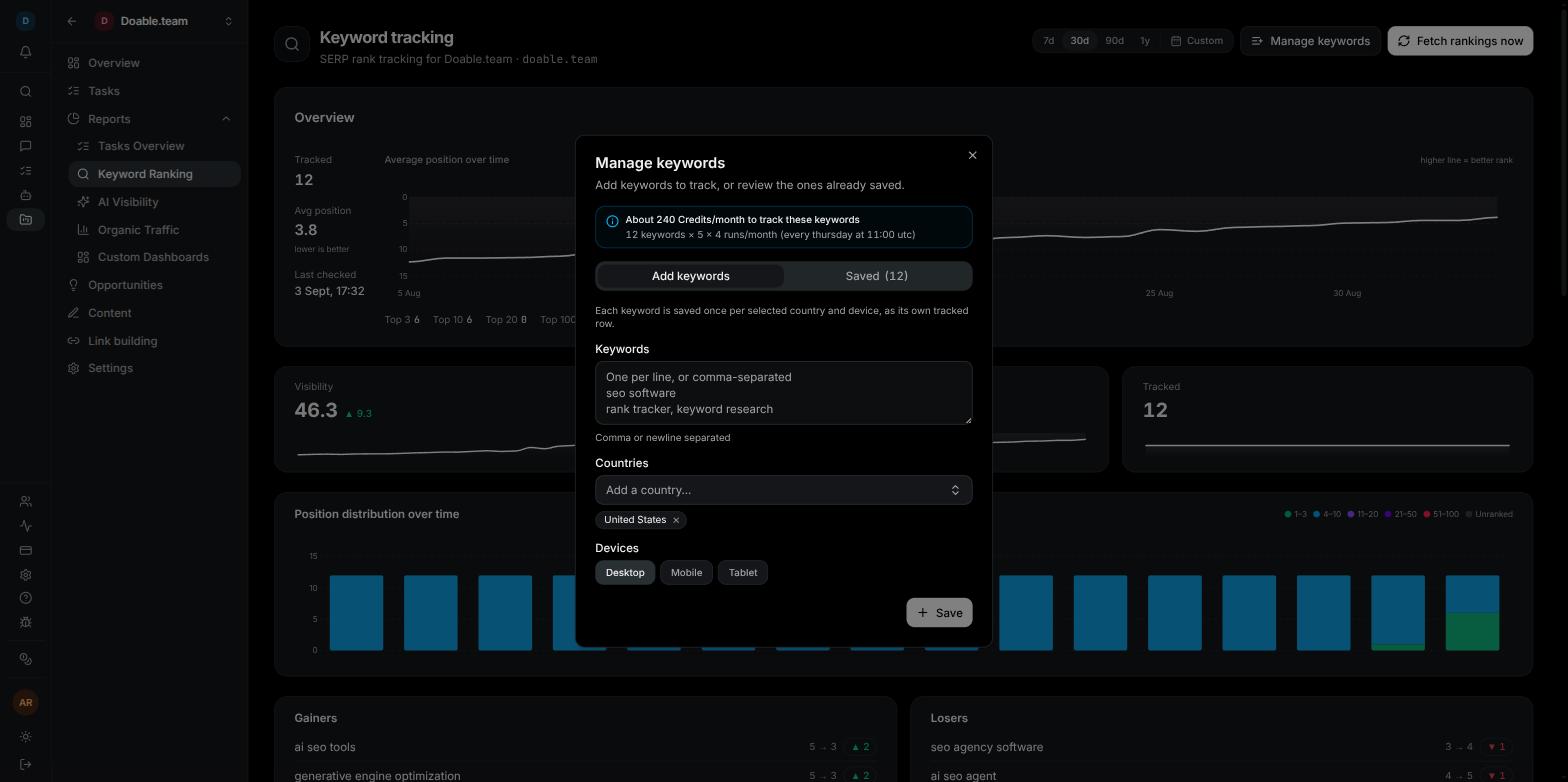
Manage keywords: keywords, countries, devices and the live row count, with the cost notice above the tabs.
- New rows appear in the table with — in the Position column and fill in within a few seconds. Visibility checks newly added keywords straight away (only the new rows, not your whole list), and that first check spends credits like any other.
- Each keyword × country × device becomes its own tracked row, as the helper text says: “Each keyword is saved once per selected country and device, as its own tracked row.”
- Duplicates are ignored regardless of capitalisation. The same keyword for a different country or device is a new row, not a duplicate.
- Checks run in English; there is no language selector. Use the country to control where the results come from.
The cost notice
Above the tabs, the dialog tells you what tracking costs at the current rate:- With an active schedule it projects a monthly figure, for example About 1,200 Credits/month to track these keywords, with the breakdown underneath: 60 keywords × 5 × 4 runs/month (every monday at 09:00 utc). That is tracked rows × credits per check × scheduled checks per month.
- With no schedule yet it shows the per-check price only: 5 Credits per keyword, per check — This project has no rank-tracking schedule yet, so nothing is billed monthly.
- If the schedule is inactive you also see Rank tracking isn’t running yet, so nothing is being charged.
Keywords your agents suggest
While auditing your site, agents can propose keywords worth tracking. They never add to your list themselves; suggestions wait in the dialog until you decide, and the Add keywords tab shows a count badge while any are waiting.1
Review the panel
Below the add form, Suggested by your agents (N) lists each keyword with the agent’s one-line reason and the name of the agent that found it. The caption reminds you: “Found while auditing your site. Nothing is tracked until you add it.”
2
Set countries and devices
Accepted suggestions are tracked for whatever Countries and Devices are selected in the form above, so set those first.
3
Accept or dismiss
Click + on a row (Track this keyword) or Add all to start tracking; a toast reports N keywords now tracked. Click × on a row (Dismiss — agents won’t suggest it again) or Dismiss all to drop the ones you don’t want.
The Saved tab and removing keywords
The Saved (N) tab lists every tracked row with its country and device. Click the × on a row to stop tracking it. If nothing is tracked yet the tab reads Nothing is being tracked yet. and offers an Add keywords button. You can also remove a keyword from the report itself: click the trash icon at the end of its row in the keyword table (Remove keyword). Either way a toast confirms Keyword removed.When rankings refresh
Rankings refresh automatically on the project’s schedule (weekly by default) and whenever you click Fetch rankings now. Newly added keywords are also checked once, immediately, when you save them.Fetch rankings now
1
Click Fetch rankings now
The button reads Fetching… while the check runs. It checks every tracked row in the project, so it costs credits per row; the cost notice in Manage keywords shows the per-check price.
2
Wait for the toast
Fetched N keyword rankings confirms the run. The table, the charts and the Last checked figure update.
Change the schedule
The automatic cadence lives with the project’s other data refreshes under Settings → Schedules, on the Keyword Rankings card. See Projects for the Schedules tab as a whole.- Click Edit and choose a Frequency: Off, Hourly, Daily, Weekly, Monthly or Custom (cron), plus the time (UTC) and, where it applies, the weekday or day of month. The summary line shows the result in words, for example Every Monday at 09:00. Click Save; the toast reads Keyword Rankings schedule updated and the card shows the new wording with Next: in ….
- The card shows the estimated cost of one run (~N Credits est. / run), the outcome of the last run, and its own Run now button. Unlike Fetch rankings now, Run now first opens a confirmation that states the cost: Run Keyword Rankings now? This runs immediately and will cost ~N Credits…
- The card stays Inactive until its requirements are met, Project domain set and At least one keyword tracked, each with a Fix → link. A schedule that keeps failing is stopped automatically with the reason shown on the card; pressing Run now starts it again.
- Past runs, manual and scheduled, are listed on the Schedules card’s History tab.
Reading the report
Overview
The Overview card at the top gives the headline numbers:- Tracked: how many rows you track.
- Avg position: the mean position of the keywords that ranked on the latest check; unranked keywords are left out. Lower is better.
- Last checked: when the most recent check ran.
- Average position over time: an area chart of the average position across the selected date range. It is drawn so that a higher line means a better rank; an improving project trends upwards.
- Top 3 · Top 10 · Top 20 · Top 100 · Unranked: how many keywords sit in each band right now.
Visibility, movers and distribution
Below the overview sits a block of analytics that needs a little history. Until the project has at least two daily snapshots it shows Not enough history yet — fetch rankings a few times to unlock visibility, movers and distribution. Once it appears you get:- Visibility, Avg position and Tracked cards, each with a ▲/▼ change over the range and a sparkline. Visibility is a 0–100 score that weights every tracked keyword by the share of clicks its position typically earns; 100 would mean every tracked keyword ranks first. It is separate from the AI Visibility report.
- Position distribution over time: stacked bars showing how many keywords fell into each band on each snapshot: 1–3, 4–10, 11–20, 21–50, 51–100 and Unranked. You want the top bands to grow and the Unranked band to shrink.
- Gainers and Losers: the keywords that moved most between the two most recent snapshots, shown as previous → current with the size of the move.
- Top ranking pages (Page · Keywords · Best · ▲ / ▼): your URLs grouped by how many tracked keywords they rank for, the best position among them, and how many of those keywords improved or declined.
- Competitors (share of voice) (Domain · SoV · Appears · Avg pos · Keywords): the domains that appear in the captured results for your keywords, ranked by how often they show up as a share, with the number of appearances, their average position and how many of your keywords they appear for. This table is built from the search results themselves, not from the competitor list in the project’s settings, so it can surface rivals you had not listed.
- Keyword cannibalization: shown only when detected. It lists keywords where two or more of your own pages appear in the results at once, with the URLs and their positions.
The keyword table
Column headers carry the same explanations as tooltips, so hover over one whenever you need a reminder.
Volume and difficulty are fetched for newly added keywords; at the current rate, keyword metrics cost 1 credit per keyword on Visibility Data. Hover over a value to see whether the figures are AI-estimated or live API data; before they arrive the hover reads Not estimated yet.
Choose the date range
The control at the top right of the page sets the reporting window: 7d, 30d, 90d, 1y or Custom. The default is 30 days.- For Custom, pick a start and end date in the two-month calendar (Pick a start and end date (up to 365 days)) and click Apply.
- The window is kept in the page’s address, so reloading keeps it and you can send the link to a teammate to show them the same view.
- The same window follows you between the project’s report pages, such as Organic traffic.
Managed data or your own DataForSEO keys
Rank checks always run on Visibility Data, the data account Visibility provides, and cost credits per keyword per check. Connecting your own DataForSEO keys does not change that. What your own keys do change: keyword metrics (volume, difficulty, CPC), competitor keyword data, backlink data and on-page crawls run on your DataForSEO account instead and are no longer metered in credits. A company admin sets this up under Company Settings → AI clients → Data providers with Connect Your Keys on the DataForSEO row, and can switch back with Use Visibility Data at any time. The full walkthrough, including what to do if your DataForSEO account restricts access by IP address, is in Credits and BYOK.Where else rankings appear
- The project Overview has a Keyword ranking section with Tracked, Avg position, Visibility, Top 3 and Top 10 plus the two charts, and a Keyword report link back to this page. Until you add keywords, the Overview’s setup bar lists Add keywords to track. See Projects.
- Custom dashboards offer Keyword Ranking widgets, Keyword KPIs, Ranking distribution, Avg. position trend and Top keywords, for client-facing reporting. See Dashboards.
- From quick search, choose Project · Keyword Ranking to jump straight to this report. See Navigating the app.