

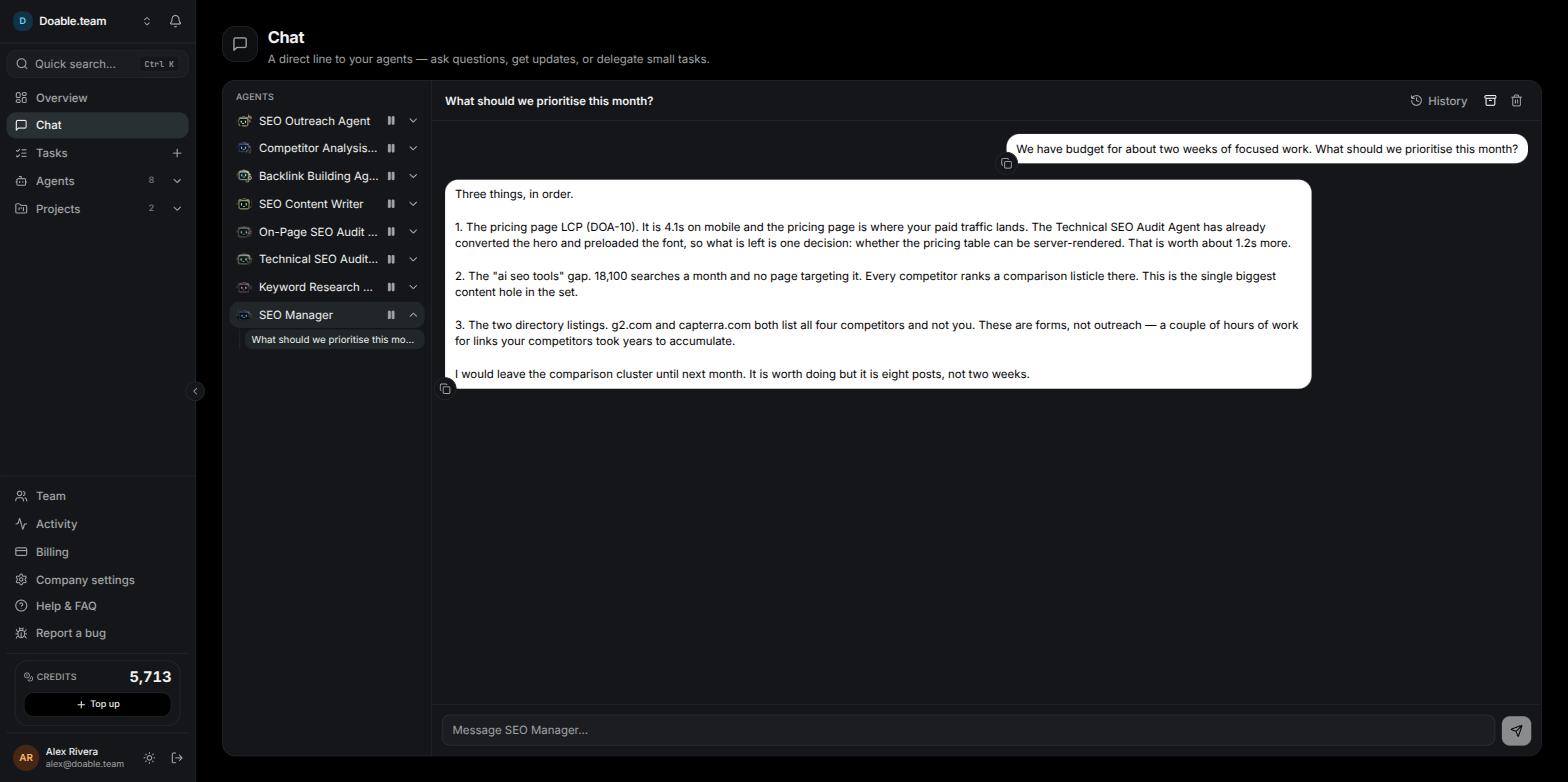
The Chat page: the agent rail on the left, the open conversation on the right.
Chat or a Task?
Both reach the same agents. The difference is whether the work needs to be tracked.
Chats are private to the person who started them. Teammates who chat with the same agent see only their own threads. Tasks belong to the Company and are tracked on the Tasks page.
The agent rail
Open Chat in the sidebar. The left rail, headed Agents, lists every agent in your Company that has not been terminated, with its avatar and name. You can also land here by right-clicking an agent on the Agents page and choosing Chat with agent. Two markers tell you an agent’s state at a glance:- A pulsing green dot, labelled Working, means the agent is running right now.
- A pause icon means the agent is paused. It will not reply until you resume it (see Paused agents do not reply).
Start a chat
1
Pick an agent
Click an agent in the Agents rail. Its newest chat opens. If it has none, click Start a new chat.
2
Write your message
Type in the composer at the bottom, labelled Message followed by the agent’s name (for example Message SEO Manager…). Press Enter to send, or Shift+Enter for a new line. Your message appears in the thread immediately.
3
Watch the reply arrive
The agent starts a short run. A bubble shows what it is doing step by step, with a Show N earlier steps toggle once it has taken a few; until the first step it reads SEO Manager is typing…. The green Working dot appears on the agent and on the chat in the rail while it works.
4
Read the reply
Replies arrive as rich text — headings, lists, tables and diagrams. Hover a reply for Copy message, Download tables (.xlsx), Export as Word (.doc) and Export as Markdown (.md). Hover your own message for Copy message.
A new chat is titled New chat until you send your first message. The first line of that message becomes the chat’s title, so a short opening line makes the thread easy to find later.
How a reply is produced
Every message you send triggers a Run by that agent — the same kind of Run it performs on a Task, just shorter. That has a few practical consequences:- It shows up in the agent’s history. Open the agent and its Runs tab; chat replies appear with the mode Chat reply and the trigger chat, each with its tokens and cost. Click one to see the run’s summary, timeline and transcript.
- It is metered like any other run. Agents on Visibility AI models spend Credits; agents on one of your own connected AI clients are billed by your provider instead.
- It can be interrupted. If the agent cannot finish, the thread shows the italic line (I couldn’t finish replying just now — please try again.) Send your message again.
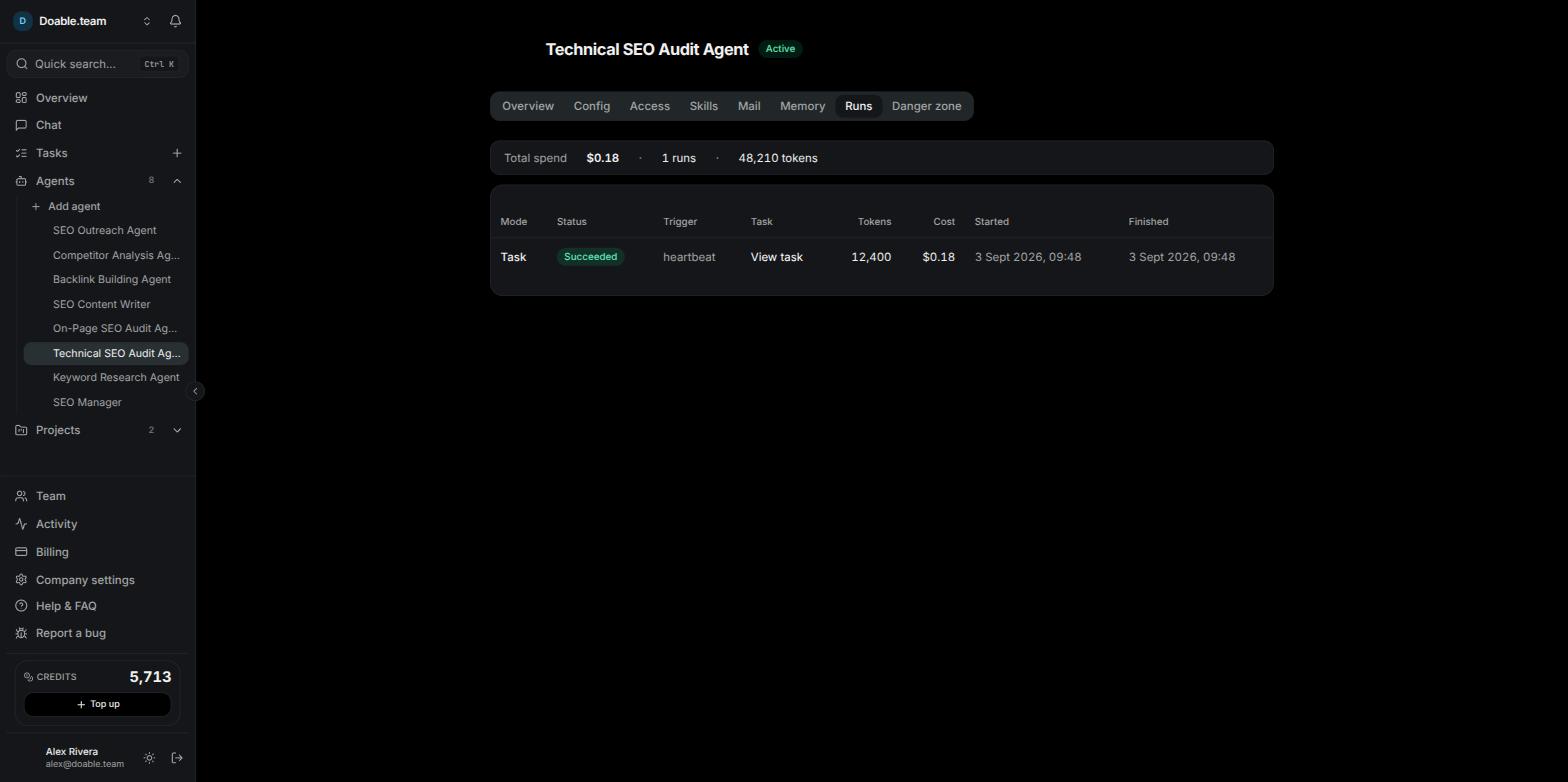
Chat replies appear on the agent's Runs tab alongside its Task runs.
Paused agents do not reply
To get a reply, the agent must be active. A paused agent shows a pause icon in the rail. Resume it before you message it; otherwise you will not get an answer.1
Resume the agent
On the Agents page, right-click the agent and choose Resume. Alternatively, open the agent’s Danger zone tab and click Activate. Both need the Manage agents permission.
2
Send your message
Return to Chat and message the agent as usual. The Working dot confirms it has picked the message up.
If your Company’s subscription has ended, the workspace is locked and no runs start — including chat replies. Reactivate it from Billing to resume work.
Threads, history and archiving
Each conversation with an agent is its own thread. Use History in the conversation header to move between them.1
Open the history
Click History in the header of the conversation. The Chats with SEO Manager dialog lists each chat with its title, an unread pill and a preview of the last message.
2
Start or switch
Click New chat to begin a fresh thread, or click any listed chat to open it. You can also jump between an agent’s active chats from its expanded list in the rail.
3
Archive a finished chat
Click the Archive icon in the conversation header to move the open chat out of the active list. Use Show archived in the History dialog to see archived chats and ← Show active to switch back; Unarchive returns a chat to the active list.
4
Delete a chat
Click the Delete (trash) icon in the conversation header to remove the chat permanently.
When a chat turns into work
Chat is meant for small delegations, but an agent is not limited to answering. Ask the Head Agent (shown as SEO Manager) for something larger than one reply can cover and it can delegate: it may create a Task and hand it to a specialist agent, or, if no agent fits, design and hire a new one. A proposed hire arrives in your Inbox as an Agent hire Approval and waits there until someone approves it. Work an agent starts from a chat is tracked like any other work: follow it on the Tasks page rather than in the thread.Related pages
Agents
Hire, configure, pause and resume the agents you chat with.
Tasks
Assign tracked work with due dates, comments and per-run costs.
Inbox and approvals
Where agent-hire and WordPress-publish decisions wait for you.
Credits and BYOK
How chat replies and other runs are metered.