
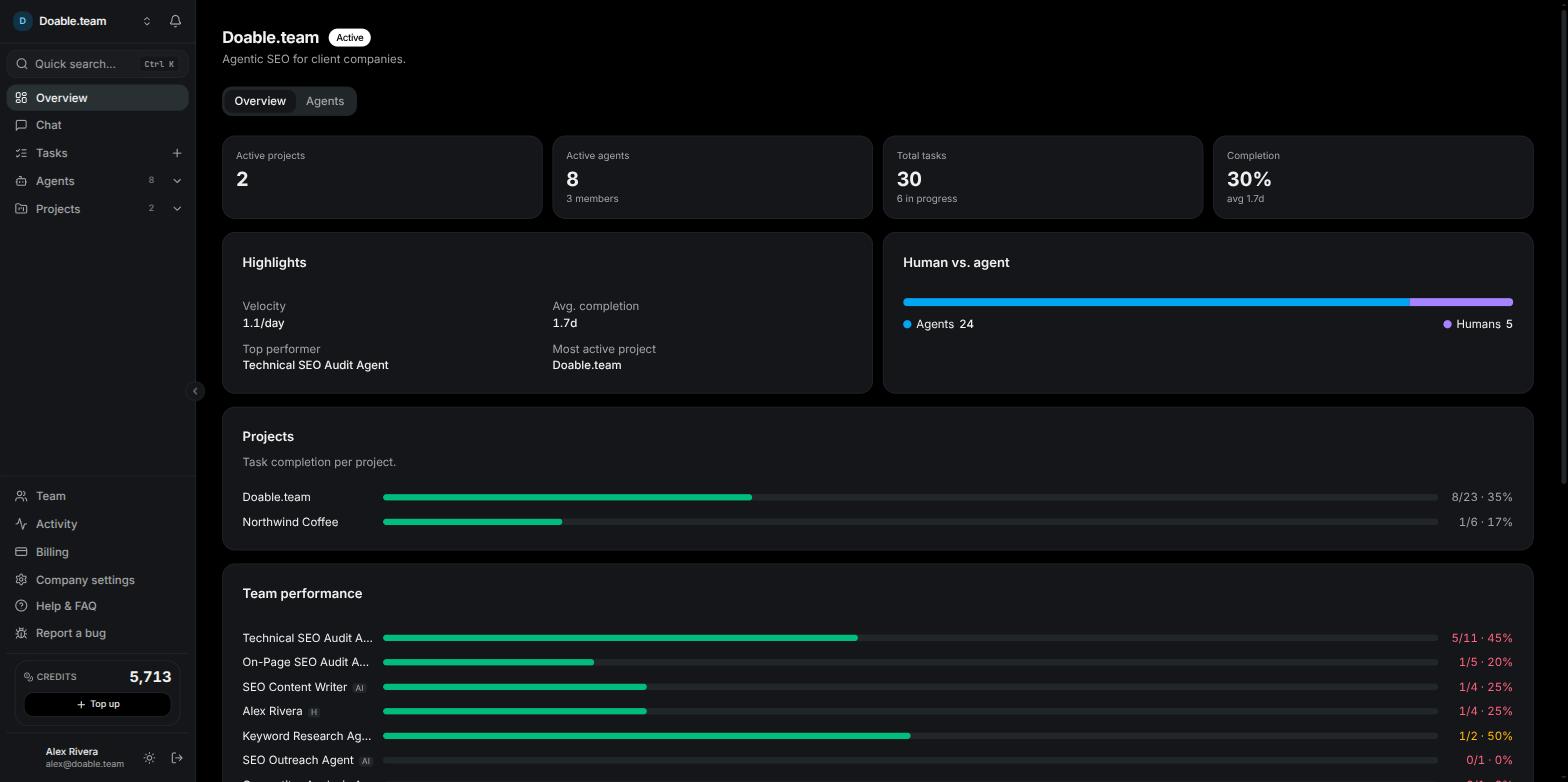
The company Overview with the sidebar expanded.
The sidebar
The sidebar has four zones, top to bottom: the company switcher and Inbox bell, the Quick search box, the navigation list, and an account area at the bottom.
Below the navigation list you find Help & FAQ, Report a bug, the Credits card and your profile row. Each is covered further down this page.
While a company is still being set up, every sidebar entry except Overview is greyed out with the tooltip Finish onboarding to unlock. Pick a plan from the Overview page’s Continue onboarding button to unlock the rest. See Getting started.
Switching companies
You can belong to several companies. Each one has its own team, agents, projects, plan and billing.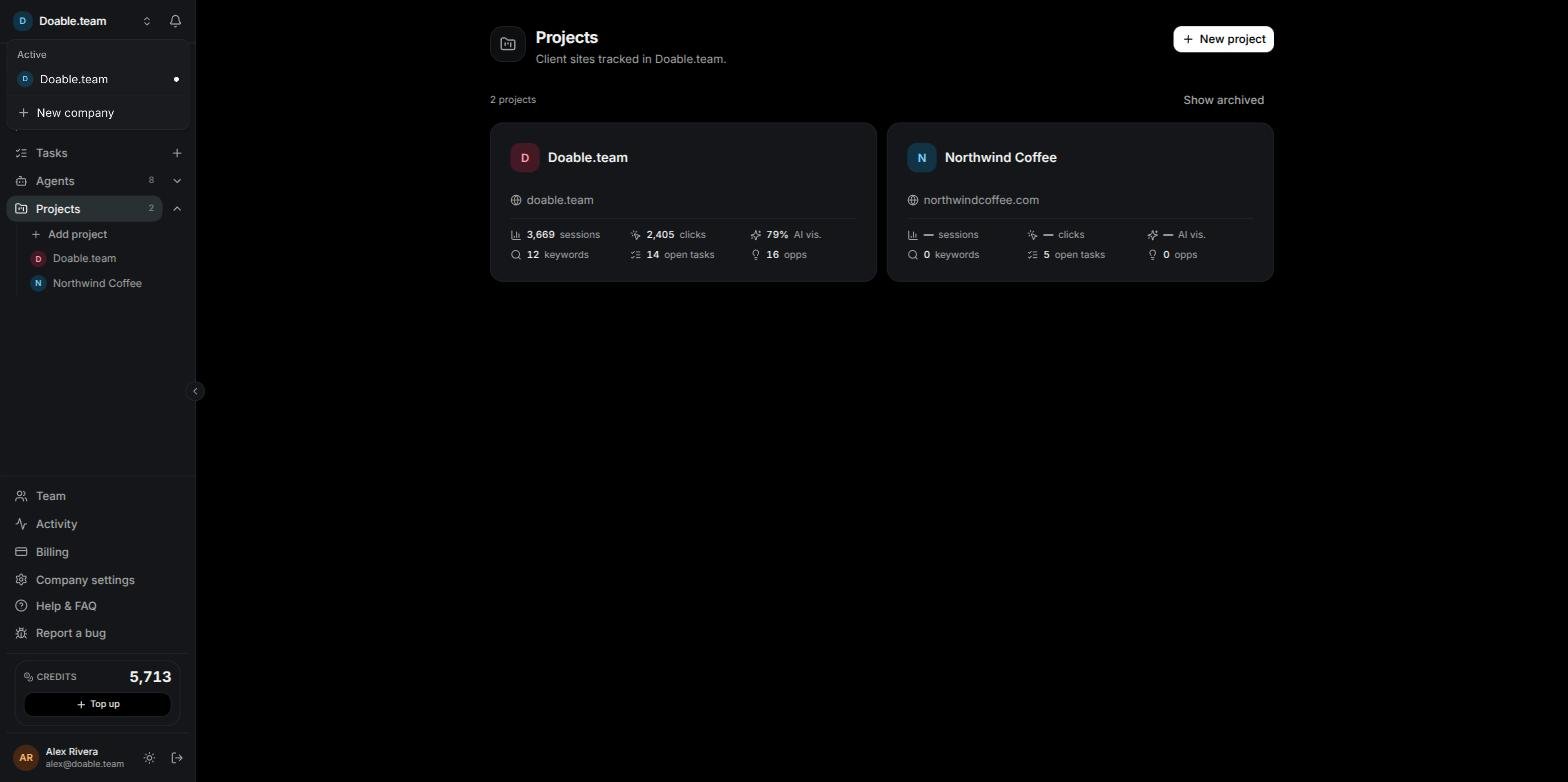
The company switcher, grouped by status.
1
Open the switcher
Click the company name at the top of the sidebar.
2
Pick a company
Companies are grouped as Active, Setting up and Archived, with a dot on the one you are in. You stay on the same section (Tasks, Team, and so on) when it exists in the company you switch to.
3
Or start a new one
Click New company at the bottom of the list to run the create-company flow again.
Quick search also finds your other companies by name once you start typing.
Quick search
Press Ctrl K (Cmd K on a Mac) anywhere in the app, or click Quick search… in the sidebar.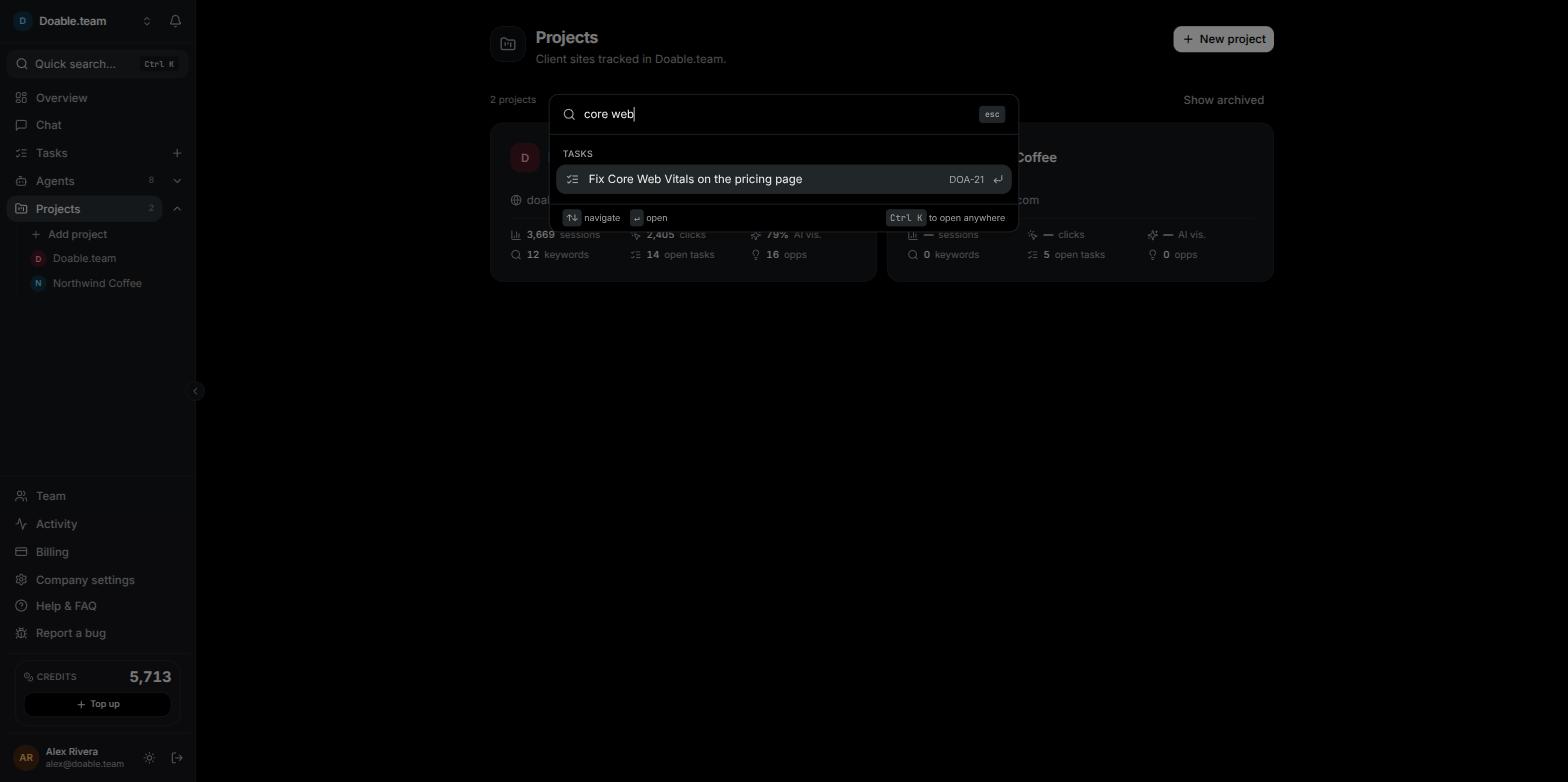
Quick search with an empty query shows actions and pages; typing searches your projects, agents, tasks and companies.
- Actions: New task, New project, Hire agent.
- Pages: Overview, Chat, Tasks, Agents, Projects, Inbox, Team, Activity, Billing, Company settings, Account settings and Help & FAQ. When a project is open, that project’s sections are listed too.
Notifications
Notifications are in-app only. They reach you in three places, all fed from the same Inbox.The Inbox bell
The bell sits beside the company switcher at the top of the sidebar. A red dot means something is unread; hovering shows the count. Click it to open the Inbox, which has two tabs: Inbox for agent and task events and Approvals for the two decisions that need a person (an agent hire or a WordPress publish). The bell counts unread items on the Inbox tab only. Pending approvals are counted on the Approvals tab instead, so check it even when the bell is quiet.The notification dock
On desktop, a collapsed Notifications bar with a count and a pulsing dot appears in the bottom-right corner whenever you have unread notifications. Click it to expand the list:- Each row shows the title, a short preview and a relative time such as “3m ago”.
- Click a row to mark it read and jump to the task, run or Approvals tab it is about.
- Hover a row and click Dismiss to mark it read without leaving the page.
- Mark all read clears the list. The dock disappears once nothing is unread.
Notifications are personal. You see events for tasks you created or are assigned to, and approvals you requested or can decide, not everything that happens in the company.
Project mode
Opening a project changes the shell. The company sidebar shrinks to an icon rail on the far left so you can still jump to company-level pages, and a second project sidebar appears beside it:- A back arrow (All projects) and a project switcher that lists your Projects, plus All projects and New project.
- Overview and Tasks for this project.
- A collapsible Reports group holding Tasks Overview and, when the matching feature is switched on in the project’s settings, Keyword Ranking, AI Visibility, Organic Traffic and Custom Dashboards. If the project’s Overview report feature is off, the whole Reports group is hidden.
- Opportunities, Content, Link building and Settings.
The credits card
The Credits card near the bottom of the sidebar shows the company’s current credit balance. Credits pay for keyword checks, AI Visibility checks and other paid data; 1 credit is worth $0.01 and credits never expire. If you can manage billing, the card also shows a Top up button that takes you through secure checkout. See Credits and BYOK.Help, bugs and support
Help & FAQ
Click Help & FAQ at the bottom of the sidebar (or use Quick search) to open the in-app FAQ. Type in Search the FAQ… to filter questions and answers live, then click a question to expand it. The Visibility team maintains this content, so it can change without an app update. This documentation site also has its own FAQ.Report a bug
Report a bug sends a short message straight to the Visibility team. It is a message, not a ticket: there is no number or status to track afterwards.1
Open the dialog
Click Report a bug at the bottom of the sidebar, directly under Help & FAQ.
2
Describe what happened
Type what you were doing and what happened in the box. The counter shows your length out of 2,000 characters; reports need at least 10. The page you are on, your account email and the company name are attached automatically, so no screenshot is needed.
3
Send it
Click Send report. You see the toast “Thanks — that’s with the team.”
Live chat and the status page
The round message button in the bottom-right corner, present on every page including sign-in, opens live chat with support. To check whether the platform itself is healthy, open status.visibility.so. It needs no sign-in.Your account
The profile row at the very bottom of the sidebar shows your avatar, name and email. Next to it sit the theme toggle and the sign-out icon.Theme
Click the sun/moon icon (Light theme / Dark theme) to switch. Visibility is dark by default, and the choice is remembered in this browser. The sign-in pages are always dark.The Account dialog
Click the profile row, or press Ctrl K and choose Account settings, to open the Account dialog. It is a dialog, not a page, and it holds everything personal to you: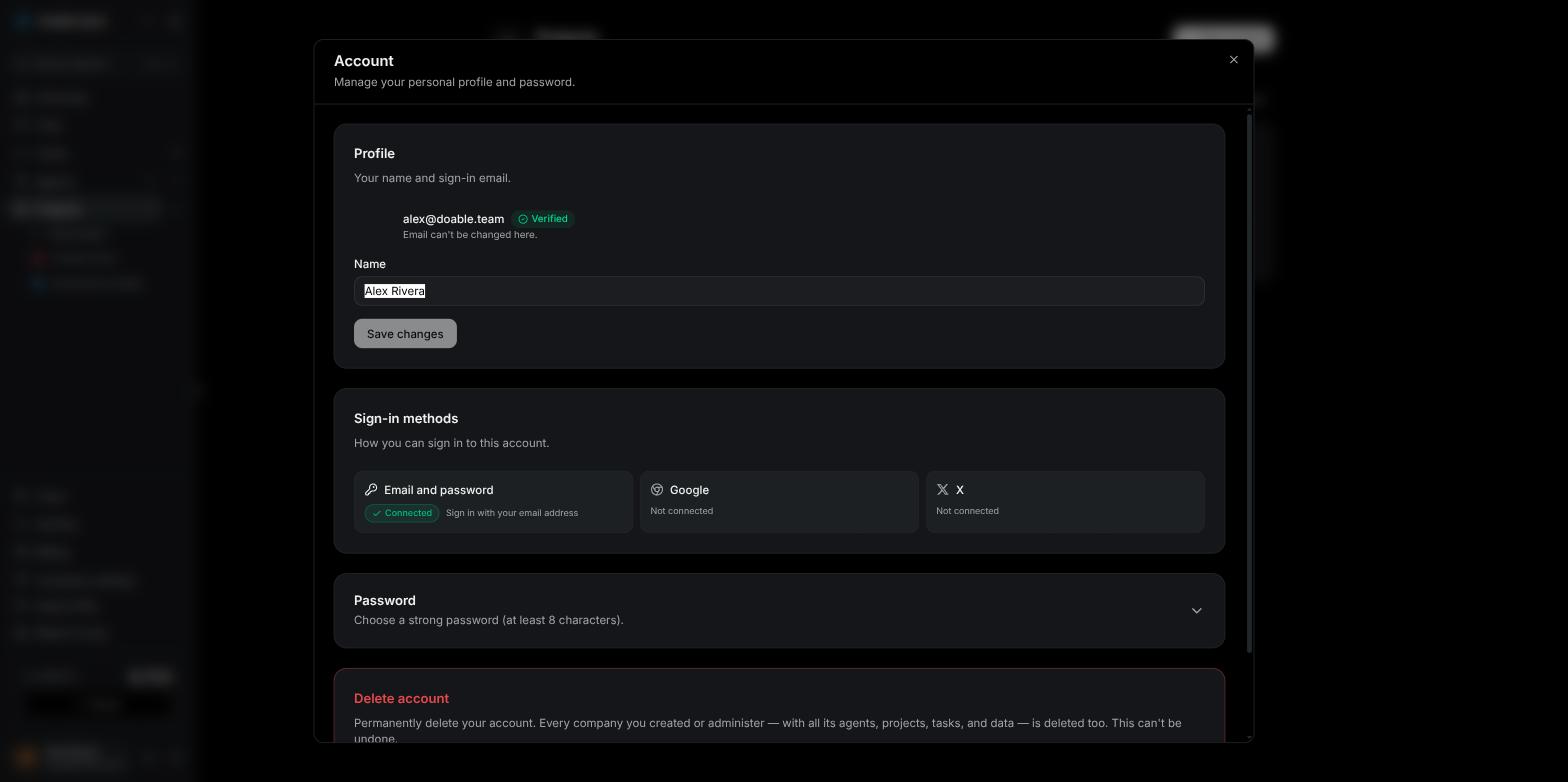
The Account dialog: profile, sign-in methods, password and account deletion.
- Profile: your name and email, with a Verified or Unverified badge. Edit Name and click Save changes. Your email cannot be changed here; contact support if you need a different address.
- Sign-in methods: whether Email and password, Google and X are Connected or Not connected. This card is informational. To add Google or X, sign in with it using the same verified email and it links automatically; to add a password, use Set a password below.
- Password: change your password (or set a first one on a Google- or X-only account). A password change signs out your other devices.
- Delete account: permanently deletes your account and every company you created or administer. You confirm by typing your email.
Sign out
Click the sign-out (door) icon in the profile row. Otherwise you stay signed in for up to 30 days, or until 7 days pass without activity.On a phone
The shell adapts on small screens:- The sidebar is hidden behind a hamburger button (Open menu) in the top header, next to the logo. Tap it to slide the sidebar in as a left-hand drawer with full labels; tap the dark overlay to close it.
- Unread notifications appear as a small bell pill pinned to the right edge of the screen, showing the count. Drag it up or down to a comfortable spot; tapping it opens a right-hand Notifications drawer with Mark all read.
- The Account dialog opens near full-screen.