

- Inbox — a feed of real events from your agents and tasks: a task assigned to you, a new comment, a run that finished or failed, a decision that needs you.
- Approvals — the decisions that wait for a person before an agent’s action takes effect. There are exactly two kinds: Agent hire and WordPress publish.
Open the Inbox
Click the bell beside the company switcher at the top of the sidebar. The bell shows a red dot while you have unread notifications; hover it to see N unread or No unread notifications. You can also search for Inbox in the command palette (see Navigating the app). The page is titled Inbox, with the subtitle Notifications and approvals for your company’s name, and opens on the Inbox tab. Switch to Approvals with the second tab.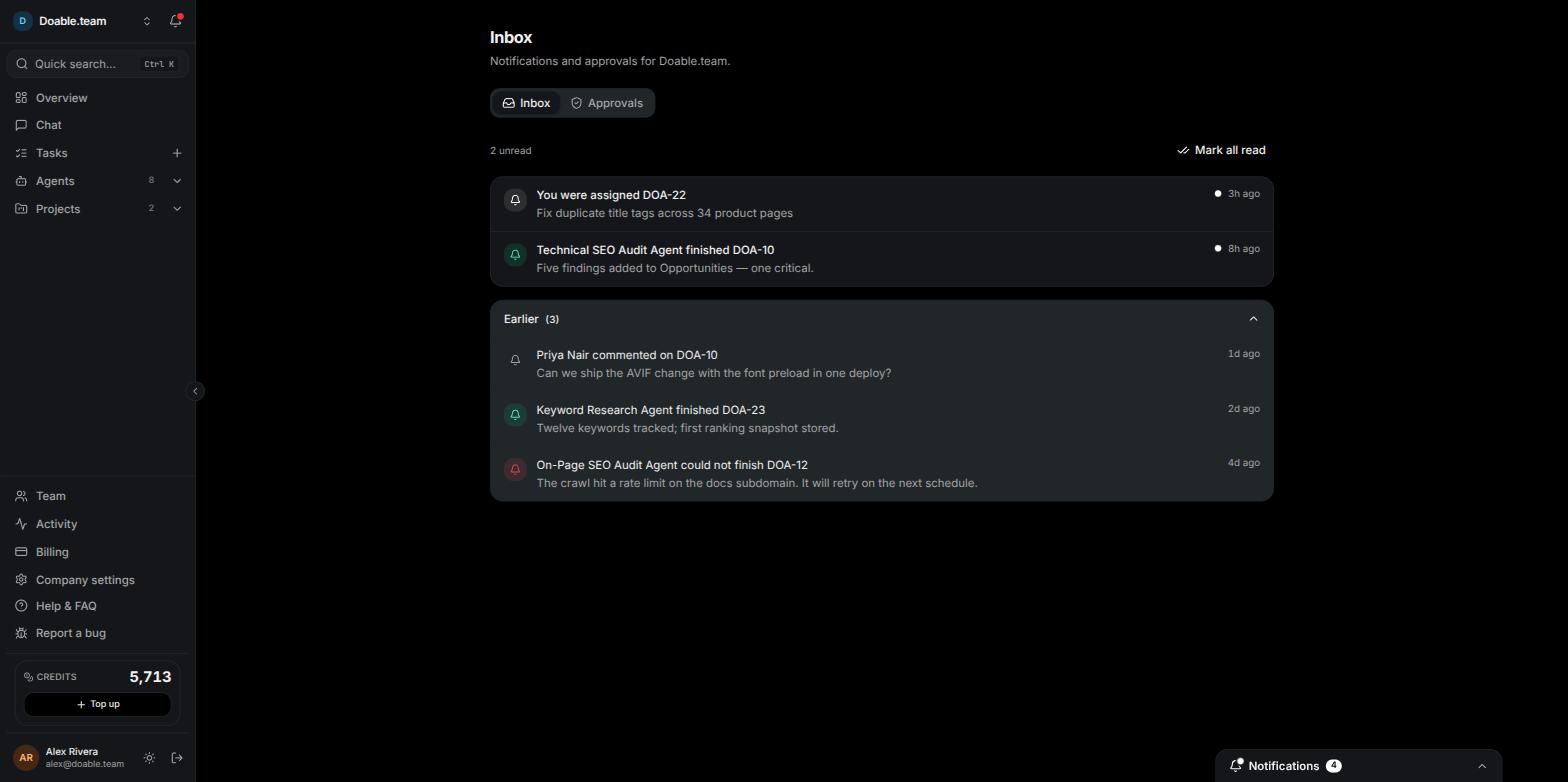
The Inbox tab: unread notifications on top, everything already read tucked into the Earlier accordion.
The Inbox tab
Unread notifications sit in a card at the top, newest first. Each row shows an icon, a title, an optional two-line preview, a relative time such as 3m ago or 4d ago, and an unread dot. Everything you have already read is tucked into a collapsed Earlier (N) accordion below, which you can expand at any time. Above the list you see a N unread counter and a Mark all read button. The button is disabled when nothing is unread. When there is nothing at all, the tab reads You’re all caught up — Agent and task events will show up here as they happen. When every item has been read, it reads No unread notifications.1
Open the Inbox
Click the bell at the top of the sidebar. A red dot means something is unread.
2
Open a notification
Click a row to go to what it is about — the task, the run, or the Approvals tab. The notification is marked read as you go.
3
Clear the rest
Click Mark all read. Every remaining unread item moves into the Earlier (N) accordion.
What creates a notification
Only real events generate notifications. These are the kinds you will see:
Notifications are personal. Task events go to the task’s creator and its human assignee — never to the person who acted, so you are not told about your own comment or an assignment you made yourself. If a task has no human owner, its events go to the company’s admins. Approval-needed notifications go to every company admin plus whoever made the request; Approved and Rejected go to the requester.
Where notifications appear
Notifications are in-app only. Visibility does not email you about Inbox events or approvals, so check in regularly.- The bell at the top of the sidebar, which opens the Inbox.
- The notifications dock (desktop) — a collapsed Notifications bar in the bottom-right corner with a count pill and a pulsing dot. It is only visible while you have unread notifications. Click it to expand: each row opens its target, hovering a row reveals Dismiss, which marks it read without leaving the page, and Mark all read clears the lot. The dock disappears once everything is read.
- The bell tab (phone) — a small tab with the unread count pinned to the right edge of the screen. Drag it up or down and it stays where you put it. Tap it to open a Notifications drawer with the same rows and Mark all read.
- Pop-up toasts at the top of the screen when a new notification arrives, with a short preview and a View action. Toasts appear for new comments, runs that complete or fail, tasks assigned to you, and approvals that are needed, approved or rejected. Approval-needed toasts are amber; failures and rejections are red. Other kinds go to the dock and the Inbox without a toast.
The bell’s unread count covers the Inbox tab only. Pending approvals are counted on the Approvals tab instead, so a clear bell does not mean nothing is waiting for a decision.
The Approvals tab
The Approvals tab shows a N pending counter and one card per request waiting for a decision. Each card carries:- a type badge — Agent hire (person icon) or WordPress publish (WordPress icon)
- a Pending status badge
- a summary line such as Hire agent “Content Writer” or Publish “Post title” to My Site
- Requested … ago
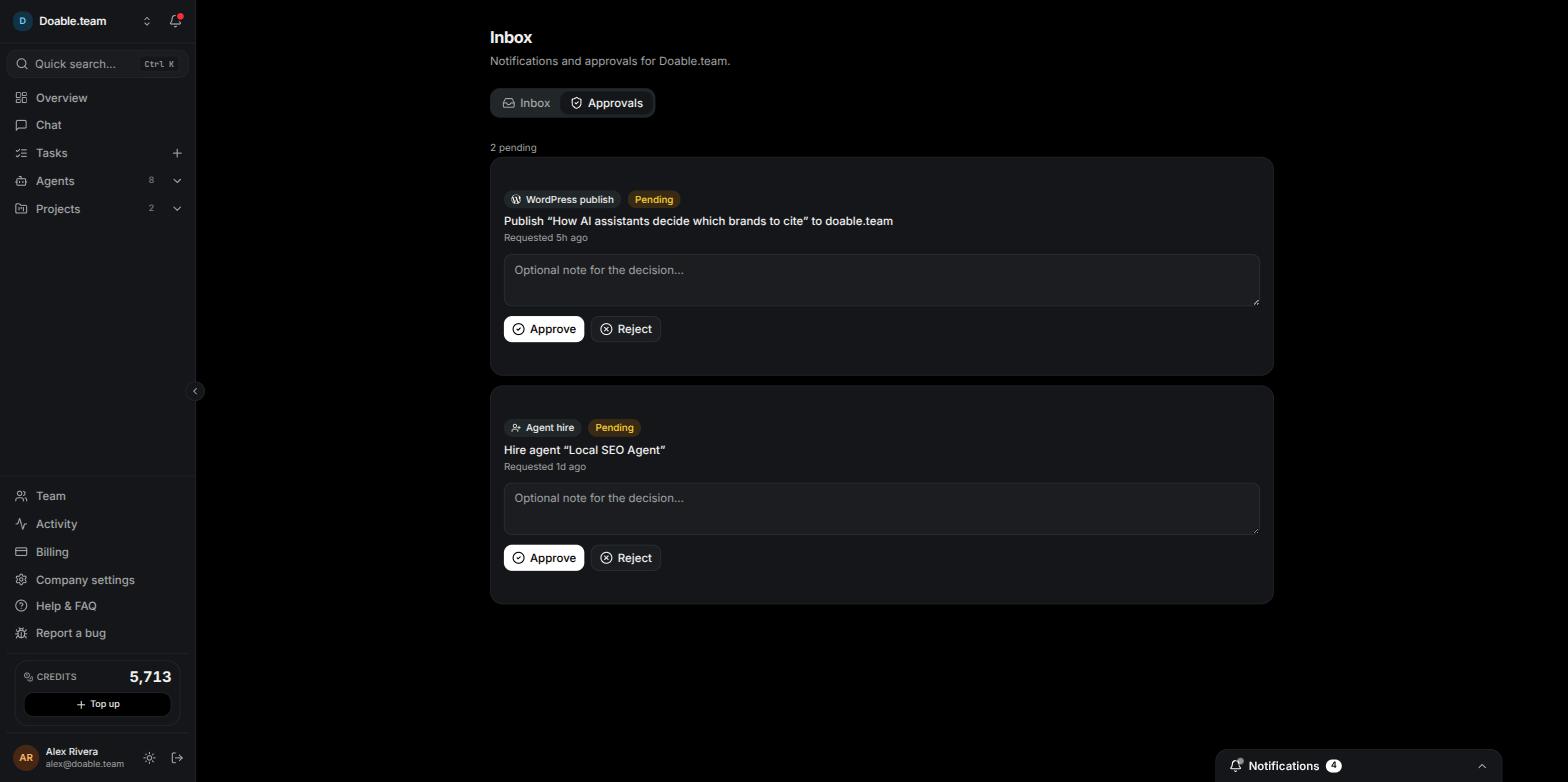
The Approvals tab with a pending Agent hire and a pending WordPress publish, each with its note field and Approve / Reject buttons.
Who can decide
Approving or rejecting needs the Decide approvals permission. The built-in Admin and Manager roles have it; Member does not; a custom role can include it. See Team management for roles and permissions. Anyone in the company can open the Inbox and read the Approvals tab. Each request is decided exactly once. If a colleague decides it before you, your click returns This approval has already been decided. and the card is already in Resolved.Agent hire approvals
When one is raised
An Agent hire approval appears when:- your Head Agent (its preset is shown as SEO Manager) or another agent proposes hiring an agent it has designed — for example after you ask it in Chat or in a task for a specialist;
- a team member who does not have the Manage agents permission requests a new agent.
Approve or reject a hire
1
Open the request
Go to the Inbox and open the Approvals tab. The amber Approval needed: agent “Name” toast or dock item links straight here.
2
Find the card
Look for the Agent hire badge. The summary reads Hire agent “Name”.
3
Add a note if you want
Type in Optional note for the decision….
4
Decide
Click Approve to activate the agent or Reject to decline. A toast confirms Approved or Rejected and the card moves into Resolved (N).
What happens next
If a person made the request, they receive an Approved or Rejected notification.
WordPress publish approvals
Every publish to a connected WordPress site is approval-gated — there is no setting that lets an agent or a teammate publish without one. Posting from the content editor always creates a draft on the site; approving the request is what makes it live.When one is raised
A WordPress publish approval appears when someone asks to publish a draft on the project’s connected site:- a person, from the content editor’s Post to WordPress dialog — Create draft, then Request publish, optionally with a Publish at date and time;
- an agent that has drafted a post and asks for it to be published. Agents can request a publish but never publish themselves.
Approve or reject a publish
1
Open the request
Go to the Inbox and open the Approvals tab. The Approval needed: a WordPress publish notification links straight here.
2
Find the card
Look for the WordPress publish badge. The summary reads Publish “Post title” to Site, so you can confirm which post and which site before you decide.
3
Add a note if you want
Type in Optional note for the decision….
4
Decide
Click Approve to publish or Reject to leave the post as a draft. A toast confirms Approved or Rejected and the card moves into Resolved (N).
5
Check the result
Expand Resolved (N). An approved publish that the site could not complete shows Publish failed: … — the post is still a draft on the site.
What happens next
The requester receives an Approved: a WordPress publish or Rejected notification.
When a publish fails after approval
Approving tells the site to publish; the site can still refuse or fail to complete it. When that happens:- the request stays in Resolved (N) as approved, with a red Publish failed: … — the post is still a draft on the site. line that includes the site’s reason;
- everyone who can decide approvals, plus the requester, receives a Couldn’t publish “Title” notification. This one reaches the dock and the Inbox without a pop-up toast.
Common questions
Why did a teammate get a notification that I did not?
Why did a teammate get a notification that I did not?
Notifications are per person. You see events for tasks you created or are assigned to, and approvals you requested or can decide. Tasks with no human owner notify company admins.
The bell is clear, but the Approvals tab still shows pending items
The bell is clear, but the Approvals tab still shows pending items
Pending approvals are not part of the bell’s unread count. Open the Approvals tab directly, or act on the Approval needed notification when it arrives.
I clicked Approve and was told the approval has already been decided
I clicked Approve and was told the approval has already been decided
A colleague with Decide approvals got there first. Each request can be decided once; expand Resolved (N) to see the outcome and any note they left.
Will I get an email?
Will I get an email?
No. Notifications and approvals are in-app only — the bell, the Inbox, the bottom-right dock and pop-up toasts.