

Content is hidden if you chose Beginner in SEO. Switch to Expert in SEO in Settings › Website to see it.
Content tasks
Content › Tasks shows only the writing, photos and publishing work; everything else lives under Tasks. It works like the main Tasks page — board, list or schedule. See Tasks.The editor
Open a content task and it opens on its Content tab: the article draft. The Discussion tab next to it holds the comments, as on any task.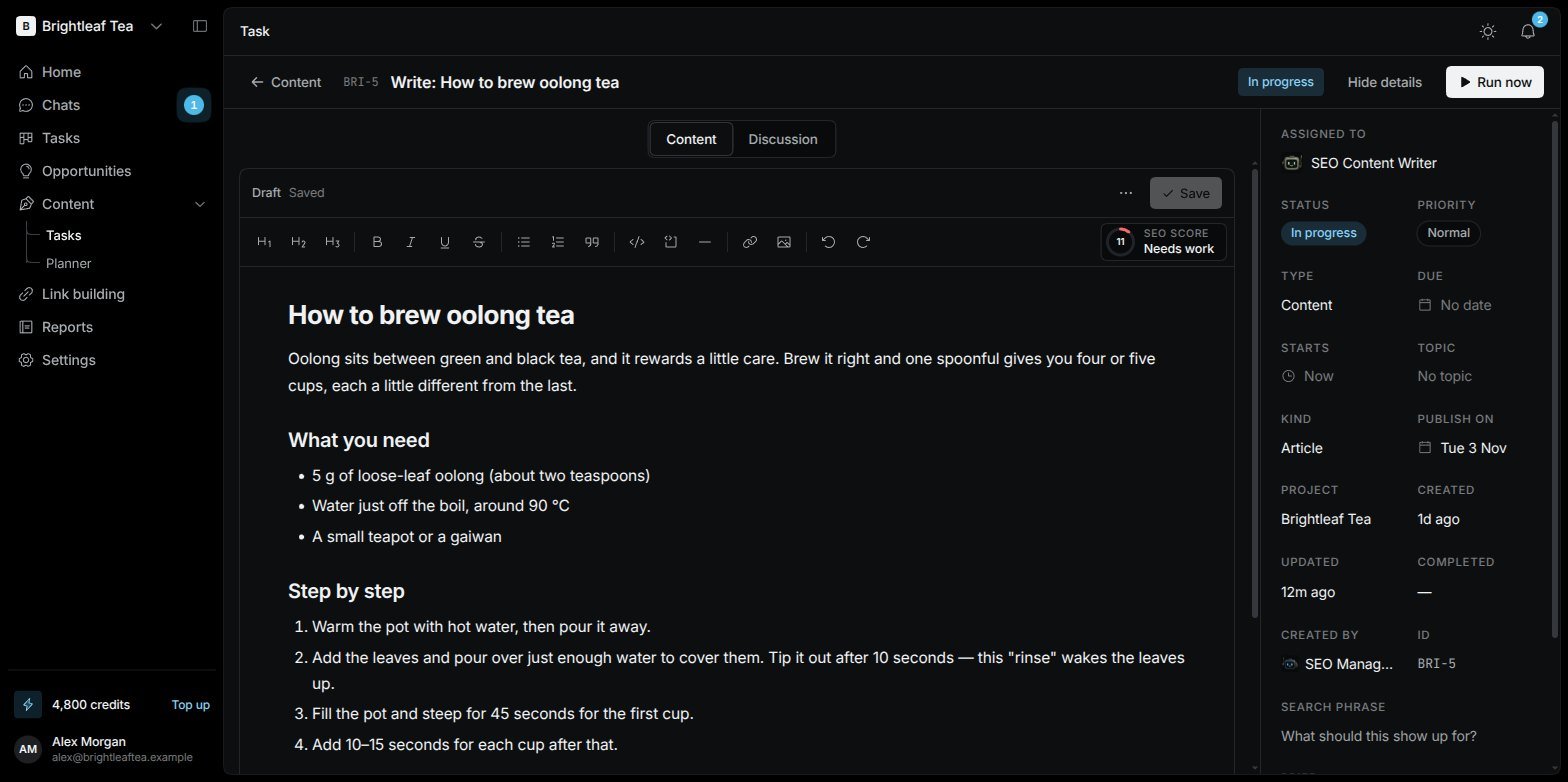
A content task: the draft in the editor, with the brief on the right
- Edit the draft directly. The toolbar has headings, bold, italic, lists, quotes, links, images and more.
- Save keeps your changes. The editor tells you when there are Unsaved changes.
- SEO score rates the draft — Needs work, Okay or Good — against the search it should show up for. Click it to see what would raise it.
- The ⋯ menu has Get keywords (searches the article should show up for), Version history (go back to an earlier draft with Restore), Copy to clipboard and Download as Markdown.
- The details on the right hold the brief: the search it should show up for, the topic, the Kind (article, page or guide) and Publish on.
The planner
Content › Planner maps out what to write, as main topics with articles inside them.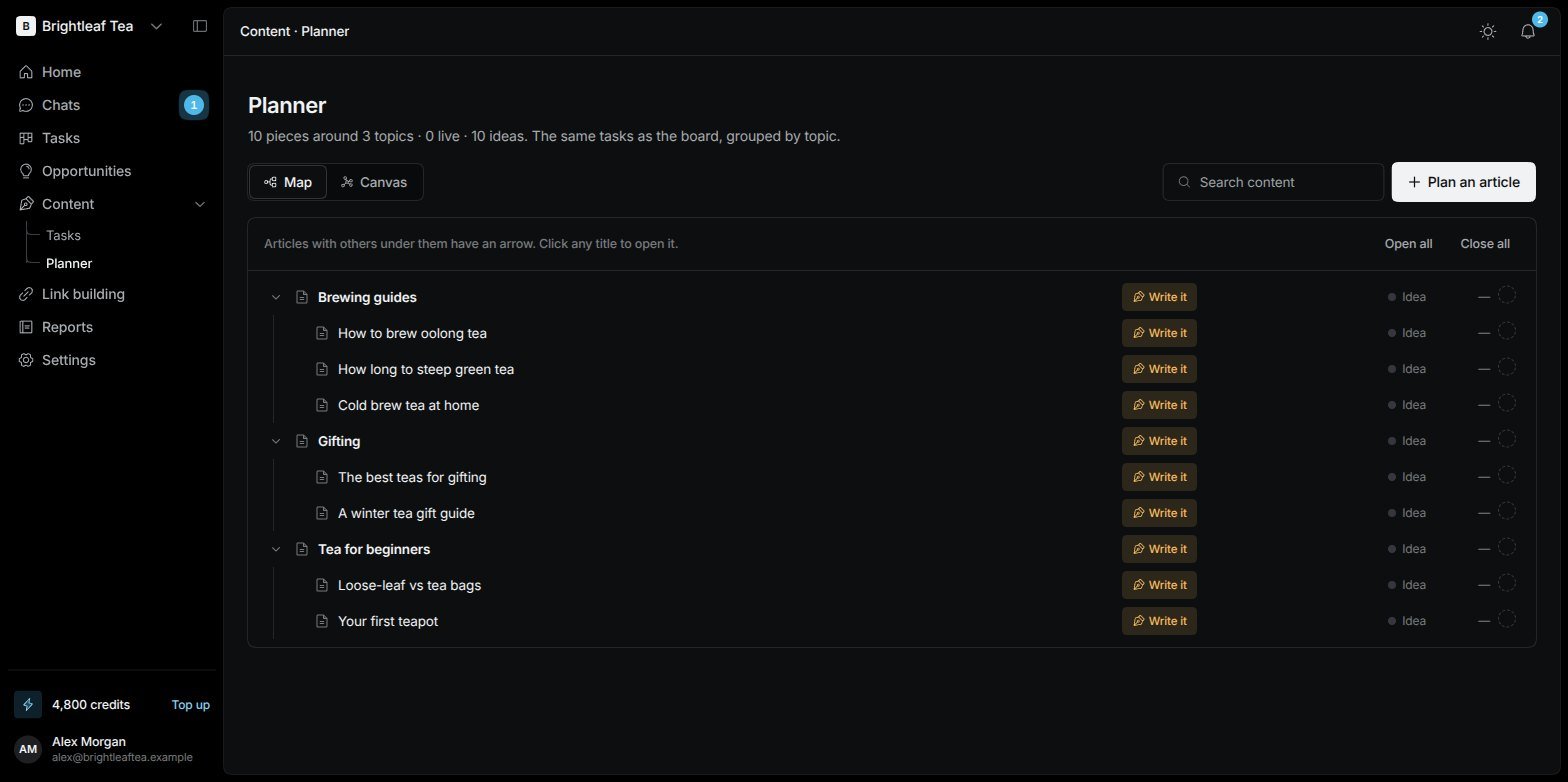
The content plan as a map of topics and articles
- Plan an article: give it a title, the search it should show up for, what it sits Inside (or Nothing (a new main topic)), a Publish on date, Notes for the writer and Who writes it. Then Add to plan.
- Switch between Map (a tidy tree) and Canvas (move cards around freely; Fit everything to see it all).
- Write it on a planned article turns it into a content task for the writer.